A Guide to Uploading Artwork files

A Guide to Artwork Files and Formats for
Personalised Stamps and Custom Printed Products
Follow these artwork and file type tips for the best results with your personalised products:
- Selfie stamps - Photo artwork, click here / Bitmoji artwork, click here
- Selfie stickers & badges - Photo artwork, click here / Bitmoji artwork, click here
- Custom stamps
- 4 colour printed products e.g. personalised stickers, certificates
- Upload issues? - click here
Selfie Stamps - Photo Format and File Tips
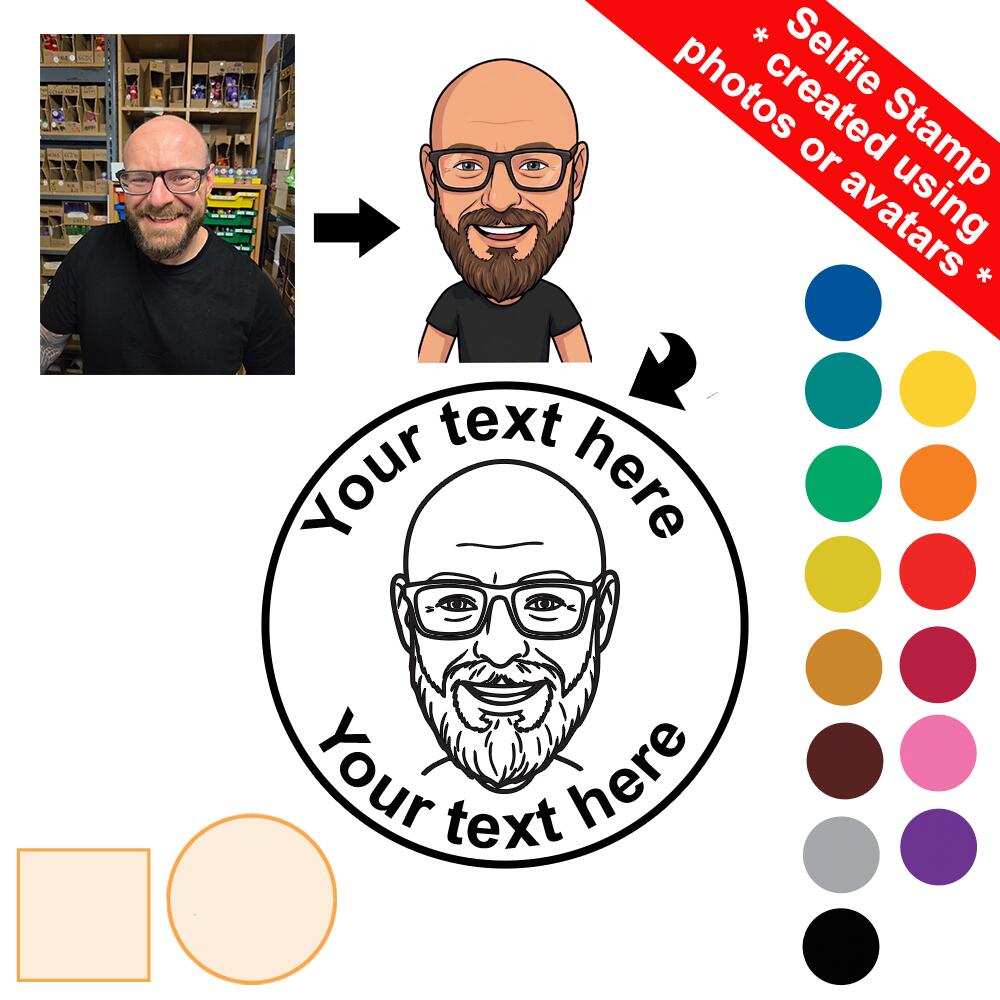 Use these top tips to create the perfect mini version of you on a stamp!
Simply upload a high quality/resolution photo from your phone or PC. Make sure your face is the main focus of the photo and is large within the frame. See the guide tab on the Selfie Stamp page for an illustrated explanation of what works best.
We will create 2 versions of your face - one simplified for use with custom stamps and the other coloured in case you decide to add personalised stickers or other printed product now or in the future.
A digital proof will be emailed to you to approve before we produce anything, so you can see exactly how it will look before we go ahead. Please make sure that your email address is correct, and you check your junk folder for your proof. The quicker we receive your approval, the quicker we can ship your order!
Please note that as part of the image conversion, some very minor variations from your original image may occur, such as slight simplification of fine detail or subtle shading differences. This is a normal part of the process and is what gives your stamp its clean, bold finish. Your proof is your chance to review and approve everything first.
Selfie Stamps - Bitmoji Format and File Tips
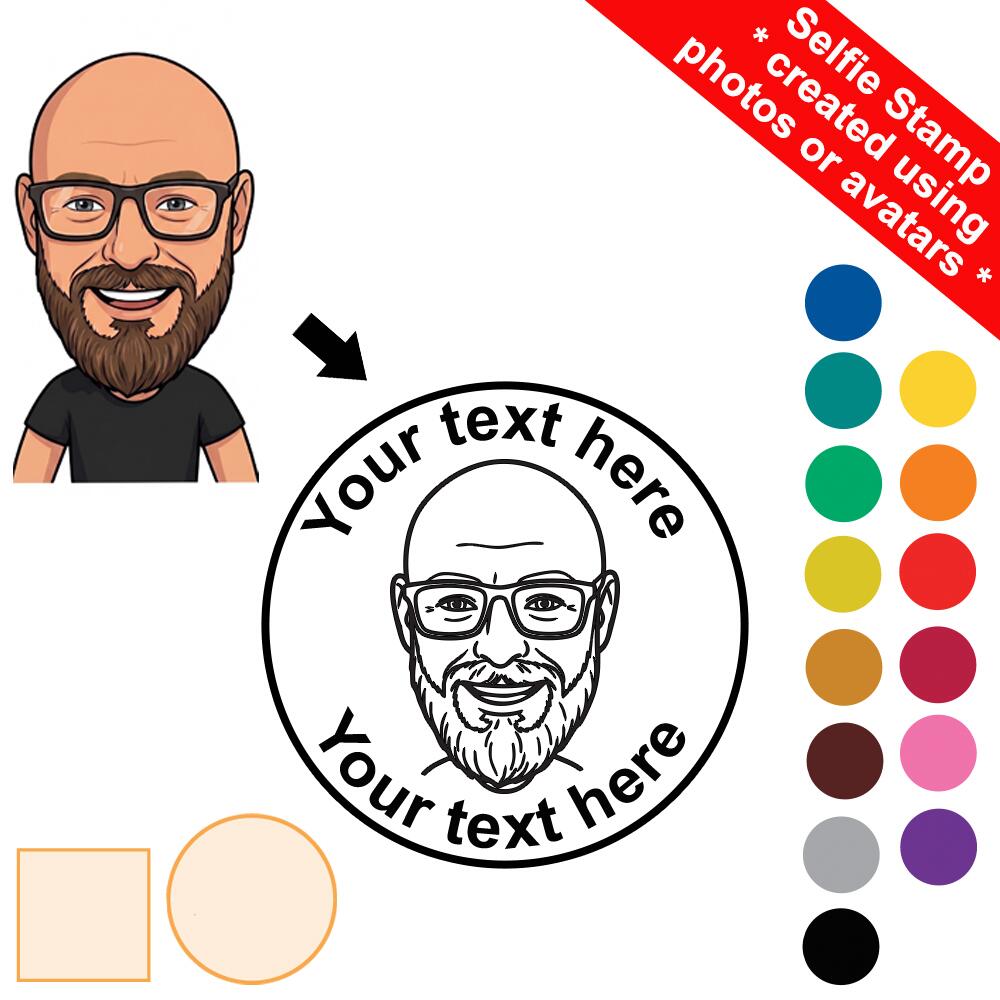 Use these top tips to create the perfect mini version of you on a stamp!
If you are using a Bitmoji, you will need to save it via the Bitmoji app.
Within the app:
- create or update your avatar.
- tap your chosen sticker to 'share' it
- scroll along the apps until you can choose ‘save’ It is usually the last option!
- tap Save, and your Bitmoji will be saved to your Phone Gallery
- upload the image in your photo gallery on the Selfie Stamp product page. This can be a black only or coloured image.
Selfie Stickers/Badges - Photo Format and File Tips
Use these top tips to create the perfect mini version of you on a sticker or badge!
Simply upload a high quality/resolution photo from your phone or PC. Make sure your face is the main focus of the photo and is large within the frame. See the guide tab on the Selfie Sticker/Badge page for an illustrated explanation of what works best.
We will create a coloured illustrated selfie image of you. We can use this in the future if you decide to order a personalised selfie stamp in the future.
A digital proof will be emailed to you to approve before we produce anything, so you can see exactly how it will look before we go ahead. Please make sure that your email address is correct, and you check your junk folder for your proof. The quicker we receive your approval, the quicker we can ship your order!
Please note that as part of the image conversion, some very minor variations from your original image may occur, such as slight simplification of fine detail or subtle shading differences. This is a normal part of the process - the proof is your chance to review and approve everything first.
Selfie Stickers/Badges - Bitmoji Format and File Tips
Use these top tips to create the perfect mini version of you on a sticker or badge!
If you are using a Bitmoji, you will need to save it via the Bitmoji app.
Within the app:
- create or update your avatar.
- tap your chosen sticker to 'share' it
- scroll along the apps until you can choose ‘save’ It is usually the last option!
- tap Save, and your Bitmoji will be saved to your Phone Gallery
- upload the image in your photo gallery on the Selfie Stamp product page. This can be a black only or coloured image.
Custom Stamps - Format and File Tips
Personalised stamps are our USP. Add your company logo or custom design quickly and easily following these guidelines.
• Artwork needs to be black and white only (with no grey, gradients, shading). For help creating artwork click here - '9 Steps to Creating Stunning Personalised Designs for Custom Stamps'
• The quality needs to be high - high resolution files enable quality results. For further help which this click here - 'A Guide to Image Resolution for Creating the Ideal Custom Stamp Artwork File'
You can upload custom artwork for any of our custom stamps - use the upload button on each product page.
Accepted custom stamp image file formats:
• AI, PSD, PDF, EPS, TIFF, JPG, PNG, and BMP
• Word and Excel files can be accepted, particularly as drafts to show design layouts but generally they do not provide adequate quality images for final artwork.
Uploading your artwork
Each custom stamp page has an upload button that will allow you to upload a limited number of files. If you have an issue simply check out and email us your files (info@classroomcapers.co.uk) quoting your order number.
4 Colour Printed Products - File Format and Tips
Using the on page upload bottom, upload a high quality/resolution image. Low quality/resolution images will produce poor printing results - we will notify you of any issues so you can decide how to proceed.
A digital proof will be emailed to you to approve before we produce anything, so you can see exactly how it will look before we go ahead. Please make sure that your email address is correct, and you check your junk folder for your proof. The quicker we receive your approval, the quicker we can ship your order!
Accepted custom stamp image file formats:
• AI, PSD, PDF, EPS, TIFF, JPG, PNG, and BMP
Upload issues?
If you have problems uploading your file, we suggest you put a note in the instructions box to say the artwork will be emailed and then checkout. Please email info@schoolstamps.co.uk quoting your order number.